Conversations, organized
Group conversations by project and find their associated files. Return to a topic with its documents and context.
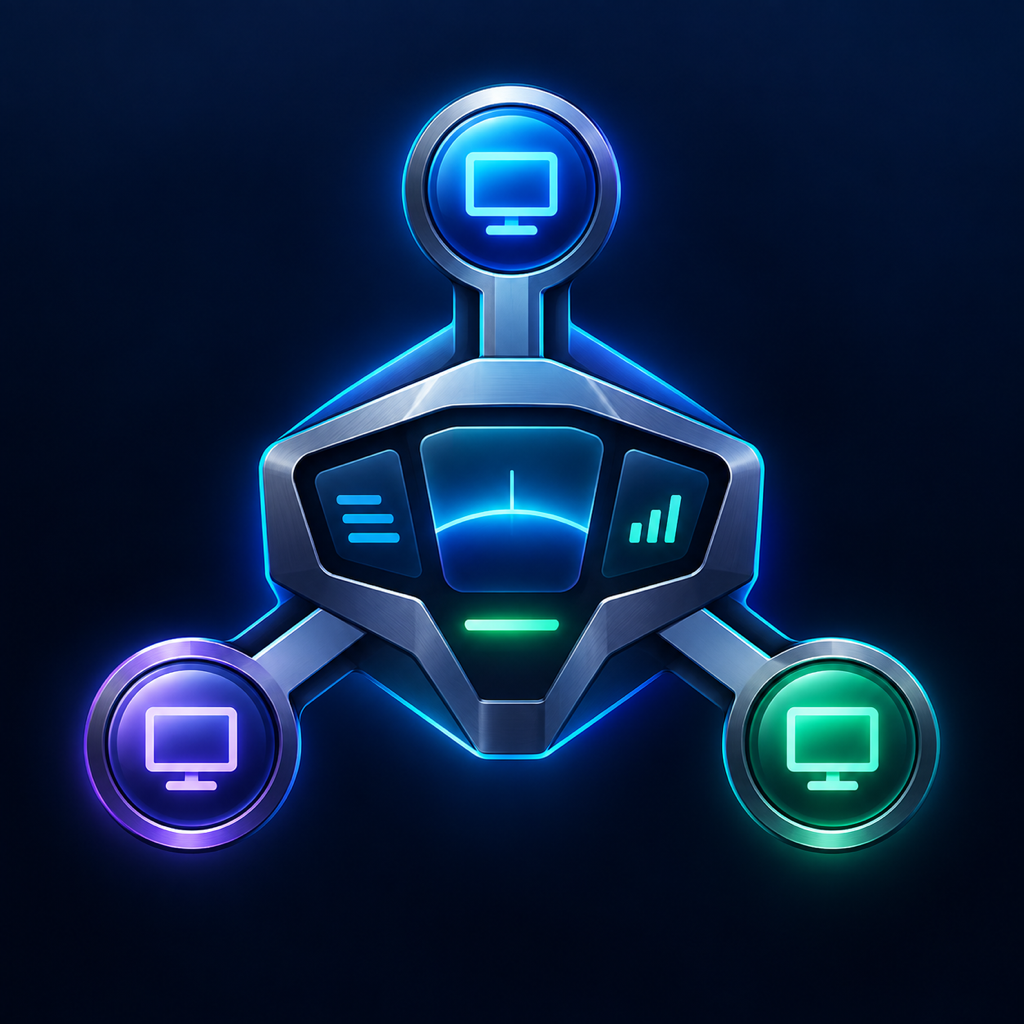 Cockpit
Windows · macOS · Mobile clients
Move from conversation to practical work. Cockpit brings your models, projects and machines together in an interface that keeps context close at hand.
In development · Ask about access and availability
Instructions, documents and conversations in one place.
01 / One workspace
Chat is the starting point. Projects, documents and tools give it a working context.
Group conversations by project and find their associated files. Return to a topic with its documents and context.
Choose from your AI connections: Anthropic, OpenAI, xAI, DeepSeek or a compatible API. CLI engines and local models have their own workflows.
Attach a text-based PDF, Word document or text file to ask for a summary or comparison. Attachments stay associated with the conversation.
Activate instructions, adjust response style and organize useful knowledge. Personal settings and project settings have distinct scopes.
Find your devices, files and terminal sessions. Machine control requires a configured agent, authorized folders and a compatible engine.
Review executions, permission requests and scheduled wake-ups. Keep track of what starts and what is waiting for your approval.
02 / Your working hub
A Mac or PC can host your personal Hub: it stores projects and coordinates connections. Your other devices join through explicit pairing.
The Hub must stay powered on and reachable. Connecting across networks requires a suitable connection. Cockpit does not automatically open router ports.
Personal HubCockpit03 / Clear capabilities
“Mes IA” connections use your API keys and send text to your chosen provider. This chat workflow does not run tools on your machines.
Compatible engines can use available tools within the authorized scope. The local agent, session rights and permissions still apply.
Provider subscriptions, keys, models and costs remain your responsibility. A chat-service subscription does not automatically include API credit.
04 / In practice
Not at the moment. Cockpit is in development and this page introduces it. Email me about trial possibilities; no purchase or public download is offered here.
The project has Windows, macOS and iPhone clients. Capabilities depend on the client and Hub versions; Linux packages and compatibility still require qualification.
Projects and conversations are stored on your selected Hub. Text sent to AI, including text from attachments, is transmitted to your selected engine or provider. Personal hosting does not mean all inference runs locally.
No. Models configured in Mes IA provide text chat. Machine control uses a separate workflow with a compatible engine, an agent and the required permissions.
Member sharing is part of the commercial roadmap, but its availability should not be assumed. Personal pairing described here connects the owner’s own devices.
Want to discover Cockpit or discuss a specific use case? Get in touch.
Let’s talk about Cockpit ↗← All products